
Building with Claude
Personal · Prototype Exploration
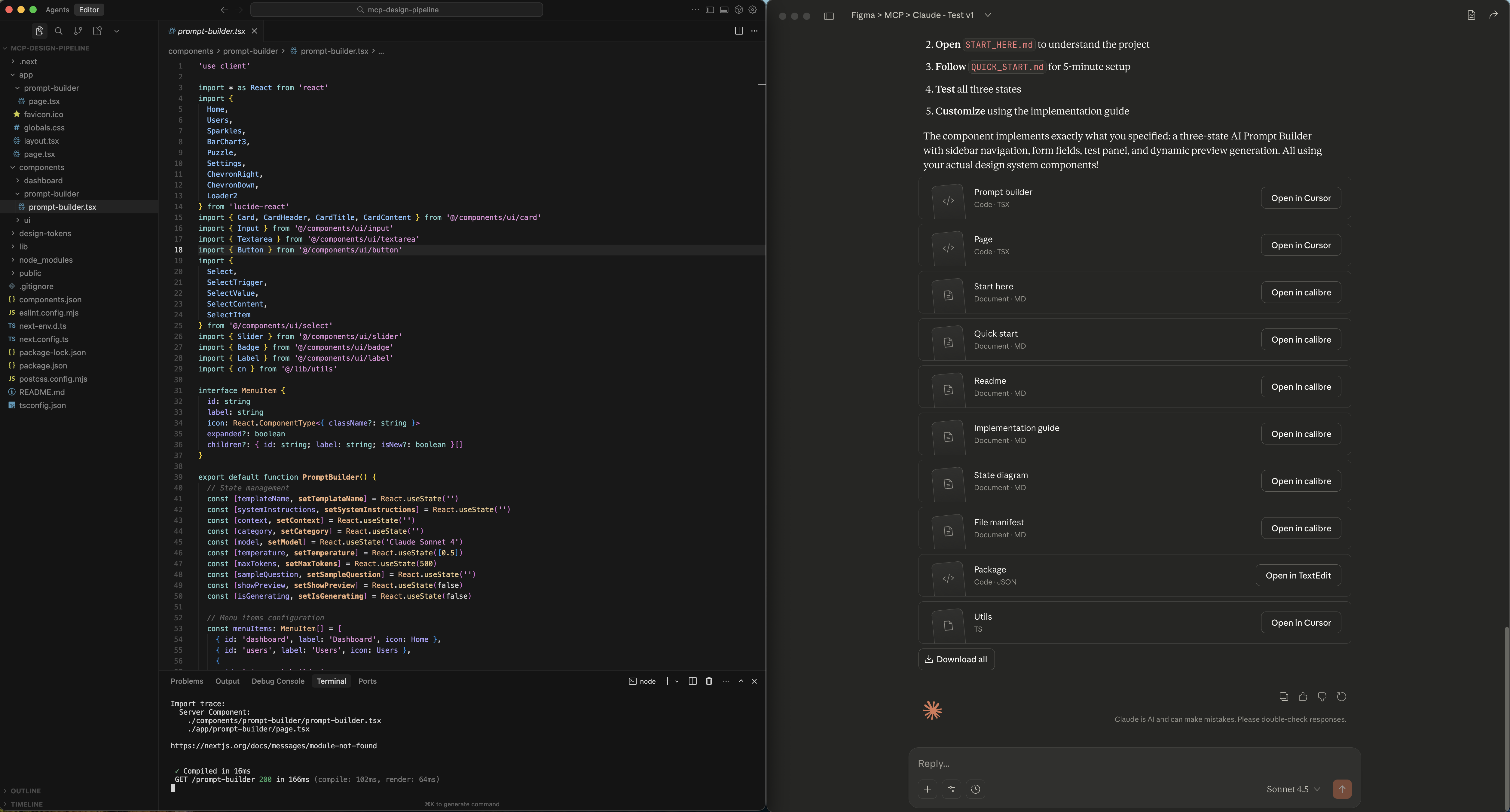
An experimental design-to-code pipeline using Claude’s API.
The Vision: Closing the Design-to-Code Loop
In the transition from deterministic to probabilistic UI, static mockups in Figma fail to capture the “feel” of an AI’s latency, reasoning, or uncertainty. I wanted to build a unified prototyping pipeline using Claude’s Model Context Protocol (MCP) that would:
- Sync with my Figma library – Pull live components into a functional environment
- Enable high-fidelity testing – Test real tool calls and agentic responses in minutes, not days
The hypothesis: If I could connect Figma → MCP → Claude → Cursor, I could prototype AI interactions faster than our current Figma → engineer handoff cycle.

What I Built
The Flow:
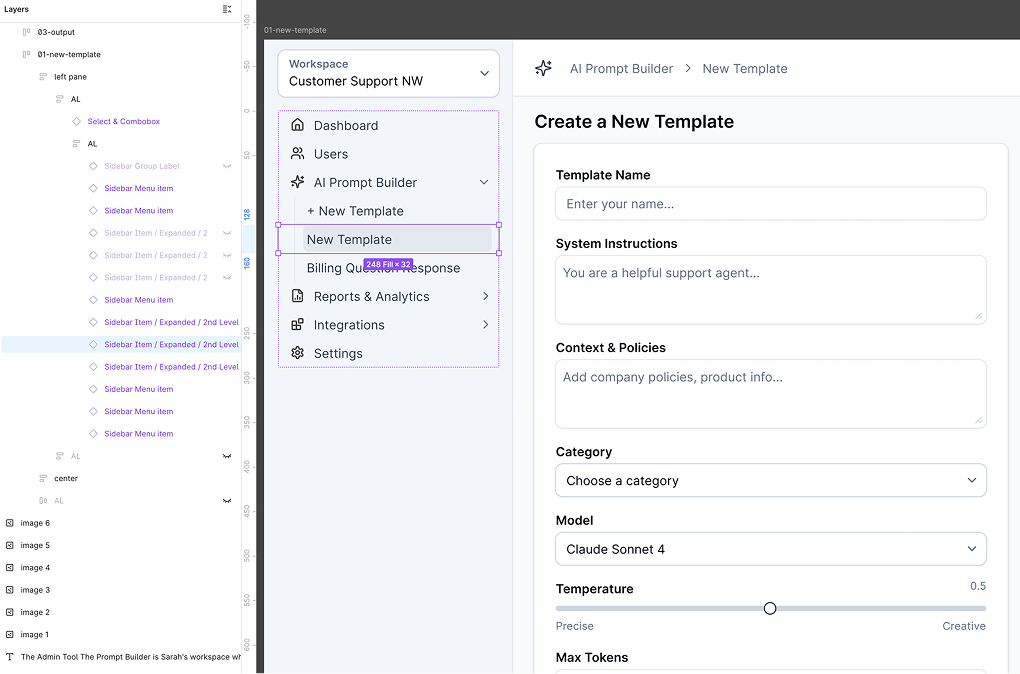
- Figma Design System → Components with MCP-compatible naming conventions
- MCP Server → Reads Figma via API, exposes metadata to Claude
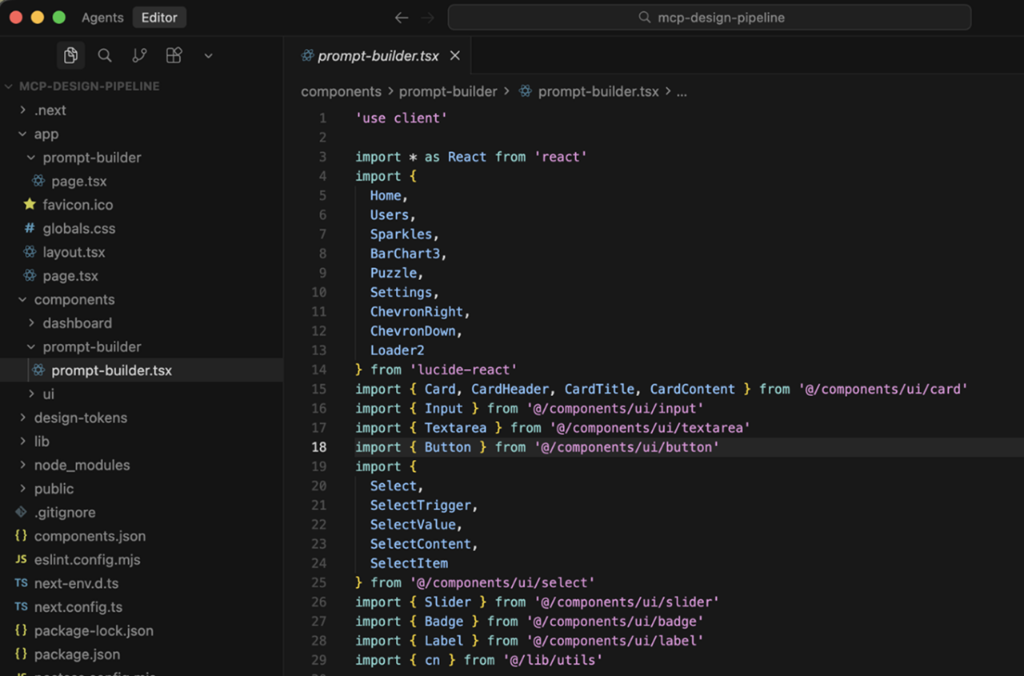
- Claude (via Cursor) → Generates TypeScript React using shadcn/ui
- Local Development → Functional prototype with real API calls
What Actually Worked (For Me):
- Spin up working prototypes in 30 minutes vs. 2 days
- Components stayed consistent with design system
- Could test real AI behaviors (streaming, latency) immediately
- Fast iteration – ask Claude to modify, see results instantly
The magic moment: “Create a chat interface with streaming responses” → working code that matched our design system.
The Hard Truth: Two Major Roadblocks
1. The Scaling & Setup “Tax”
The Problem: The pipeline required specific local environment configuration. To use it, teammates needed to install MCP SDK, manage API keys, and be comfortable with terminal commands.
The Realization: I built a “bespoke cockpit” for myself, not a “utility” for the team.
The Insight: For design tools to succeed in enterprise environments, they must be browser-first and zero-config. Setup friction killed adoption.
2. The “One-Way Street” Limitation
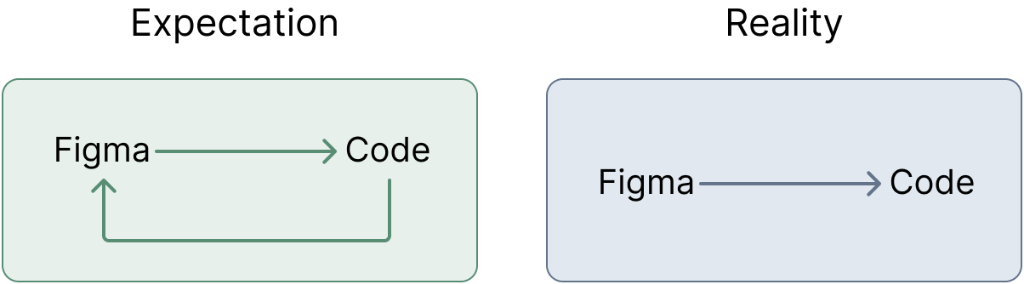
The Problem: Sync was unidirectional – I could pull from Figma but couldn’t push changes back.
The Technical Gap: MCP can read context brilliantly, but writing back to design tools isn’t part of the paradigm yet. AI-assisted design should enable bidirectional learning.
What I Learned About AI-Powered Workflows
- LLMs Lower Barriers, But Don’t Remove Them. Claude made generating code incredibly easy. But the gap between “working for me” and “working for the team” remained enormous.
- AI Tools Are “Agreeable” – Sometimes Too Agreeable. Claude never pushed back on my assumptions. You still need critical thinking – AI amplifies your direction, good or bad.
- The Best AI Tools Solve Clear, Specific Problems. The most successful moments came from clear, bounded problems. The failure was trying to solve a vague, systemic issue.
- Hands-On Building Reveals Hidden Truths. No planning would have revealed the setup tax or one-way sync limitation. Even “failed” prototypes teach what won’t work.
Reflection: Technical Feasibility vs. Product Viability
This project taught me the difference between building something that works and building something that scales.
As a designer who prototypes with code, it’s easy to fall in love with technical elegance. But my job isn’t building the most advanced pipeline – it’s building tools that empower the team to move faster together.
My evaluation criteria now: “Can my least technical teammate use this without my help?” If not, it’s not ready.